
Add a Key Date
Put a sale, an open house, or a field day on your calendar, and your weekly posts plan around it.
How do I add a key date to my calendar?
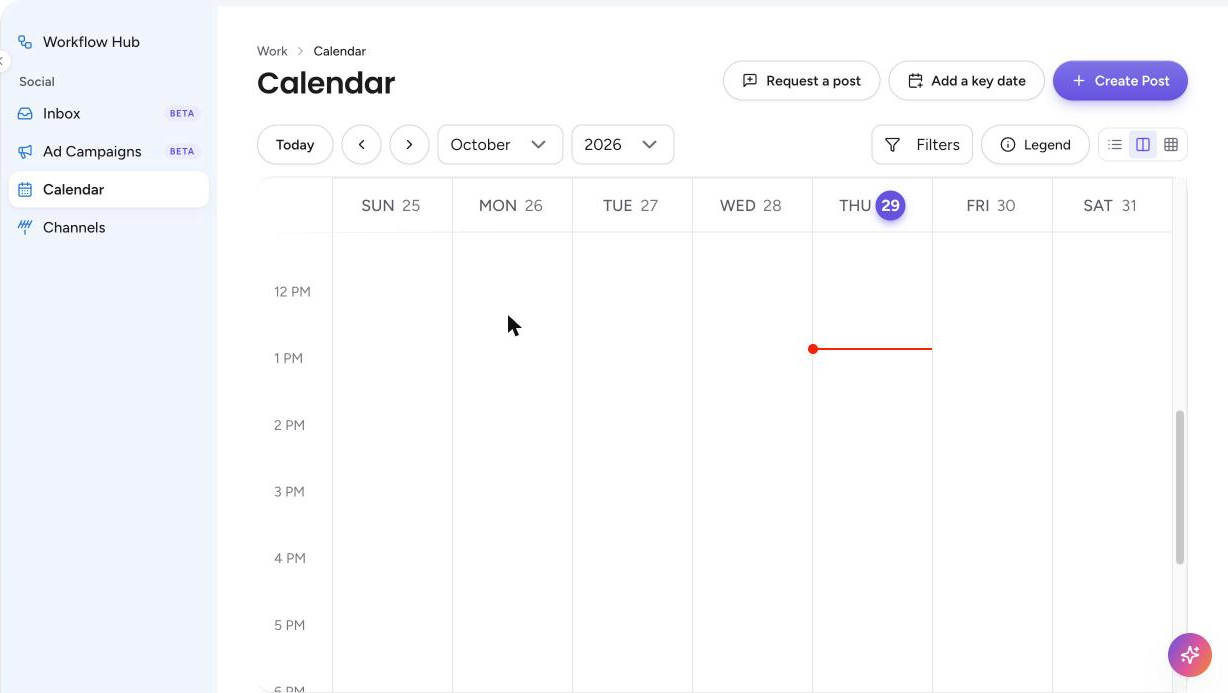
To add a key date, open Work, then Calendar, select Add a key date, fill in the title and date, and select Add key date.
Open Calendar. In the left menu, select Work, then Calendar.
Select Add a key date. The button is at the top right of the page, between Request a post and Create Post. On a phone, open the Add menu and choose Add a key date.
Give it a title. Type what is happening, such as an open house, an anniversary, or a sale weekend.
Pick the date. Select the calendar icon and choose a day, or type the date as MM/DD/YYYY, with the slashes. Tumbleweed reads the date back to you with the day of the week, such as "That's Fri Oct 30."
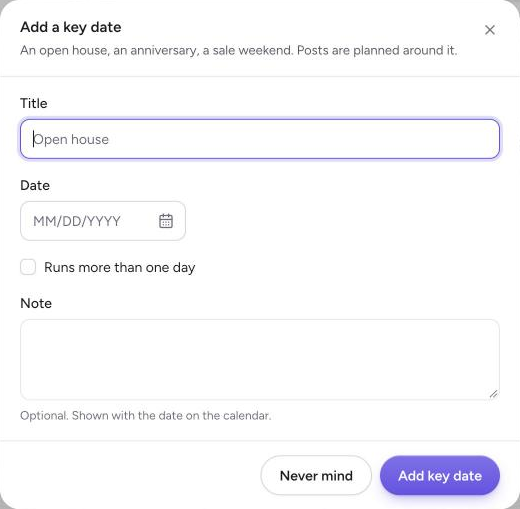
Does it run more than one day? Tick Runs more than one day, then choose the Last day.

Add a note, if you like. The Note is optional, and it is shown with the date on the calendar.
Select Add key date. Your key date appears on the calendar with a star. A date that runs for weeks shows as one bar per week, named once. To close the window without saving, select Never mind.

Change it later. Select the key date on the calendar. The Edit key date window opens. Change the title, date, or note, then select Save changes.
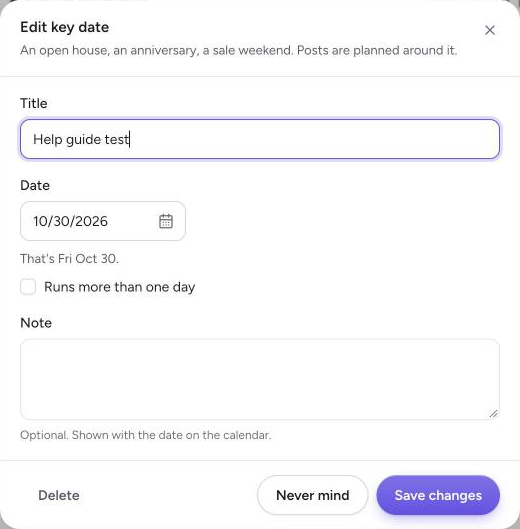
Delete it. In the Edit key date window, select Delete. Tumbleweed asks "Delete this key date?" Select Delete to take it off the calendar, or Keep it to leave it.

Your weekly posts take your upcoming key dates into account. Admins and Editors can add, change, and delete key dates. Everyone on the team can see them.