
Broadcast a Post to Retailers
Publish one post into your connected retailers' social channels, now or on a schedule.
Open Network Broadcast. Select Work, then Network Broadcast. You can also select Create, then Network broadcast. The list shows each broadcast with its status, retailers, date, and who created it. Use All broadcasts, Awaiting review, Scheduled, and Sent to filter it.

Select New broadcast. A four-step guide opens: Compose, Recipients, Schedule, and Review.
Compose your post. Choose the platforms, write the post your retailers will publish, and add media. Hashtags in your text are picked up automatically. Select Write with AI if you want help with the wording. Next stays greyed out until you have chosen a platform and written your post.

Choose your recipients. Select Next. Under Which retailers should receive it, pick how the post is delivered: Any selected channel sends it to whichever of your chosen platforms a retailer has connected, and is best for reach. All selected channels sends it only to retailers who have every chosen platform connected. Anyone who does not is skipped and named in the report.
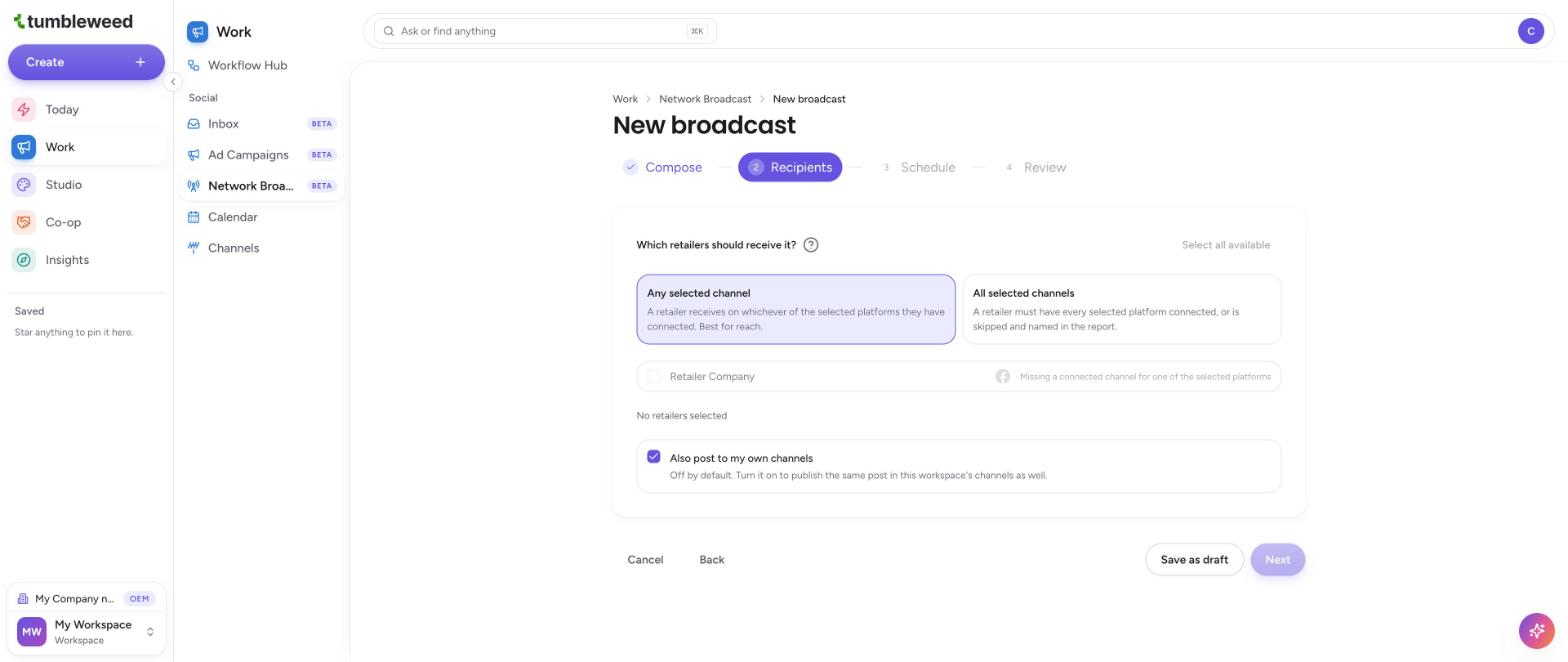
Pick your retailers. Tick each retailer who should receive the post, or select Select all available. A retailer who has not connected a channel for your chosen platform is greyed out, with a note saying so. You need at least one retailer to continue.
Post to your own channels too (optional). Tick Also post to my own channels to publish the same post on this workspace's channels. It is off by default.
Choose when it goes out. On the Schedule step, set when your retailers publish the post.
Review it. Check everything on the Review step before it goes out. To come back to it later, select Save as draft at any step.
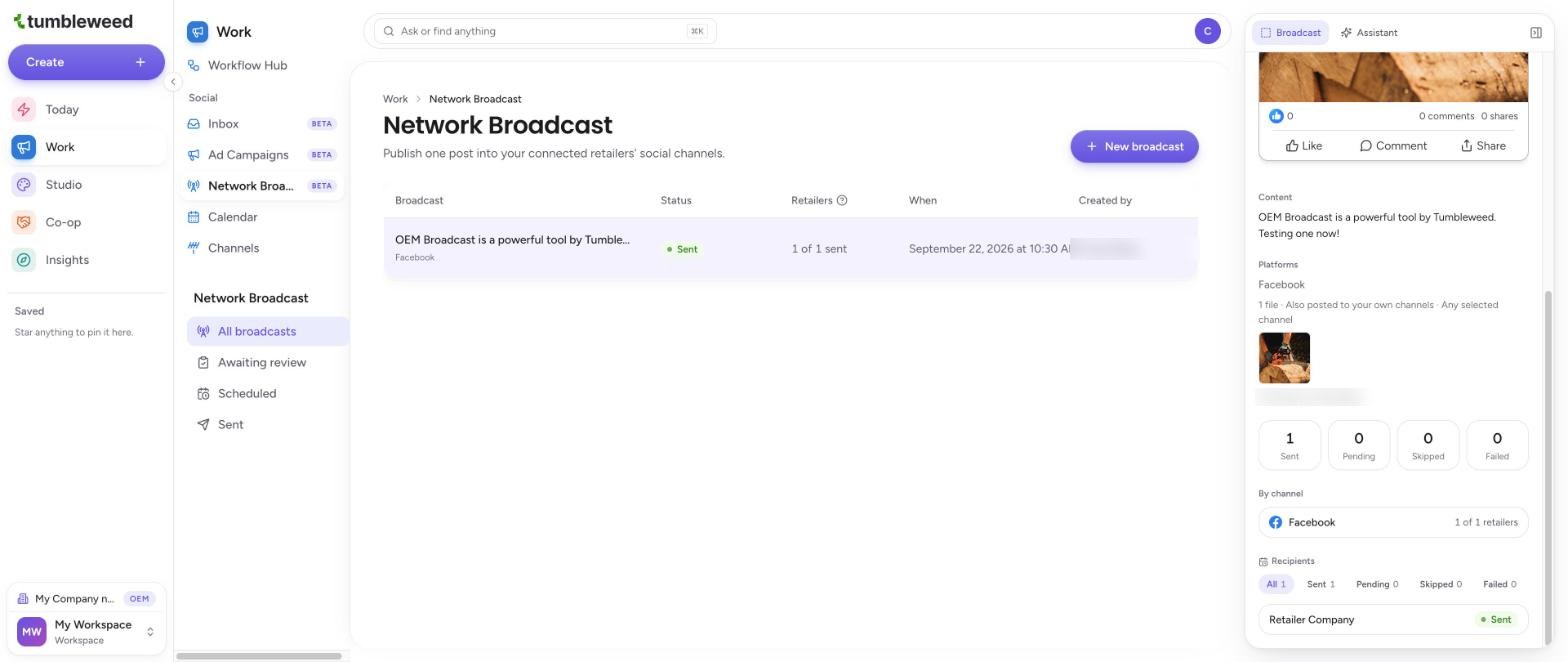
Track it. Back on the Network Broadcast list, the Status and Retailers columns show how many retailers have published it. Select a broadcast to open its details on the right. You see an example of how the post appears on a retailer's page, because every retailer publishes it under their own name.

Check the results. Scroll down in the details to see how many retailers are Sent, Pending, Skipped, or Failed. The By channel section shows each platform, and the Recipients list shows each retailer's status. Use the filters above the list to see only one status.
Network Broadcast is a Beta feature. Retailers need to be connected to you first, so invite them from Co-op, then Retailers. Admins can give Network Broadcast to Editors and Contributors under Additional permissions when adding a user.