
Connect Social Media Accounts
Connect your social channels so you can publish and schedule from Tumbleweed.
Open Channels. Select Work, then Channels. You can also select Connect Social on the Getting started card on Today.
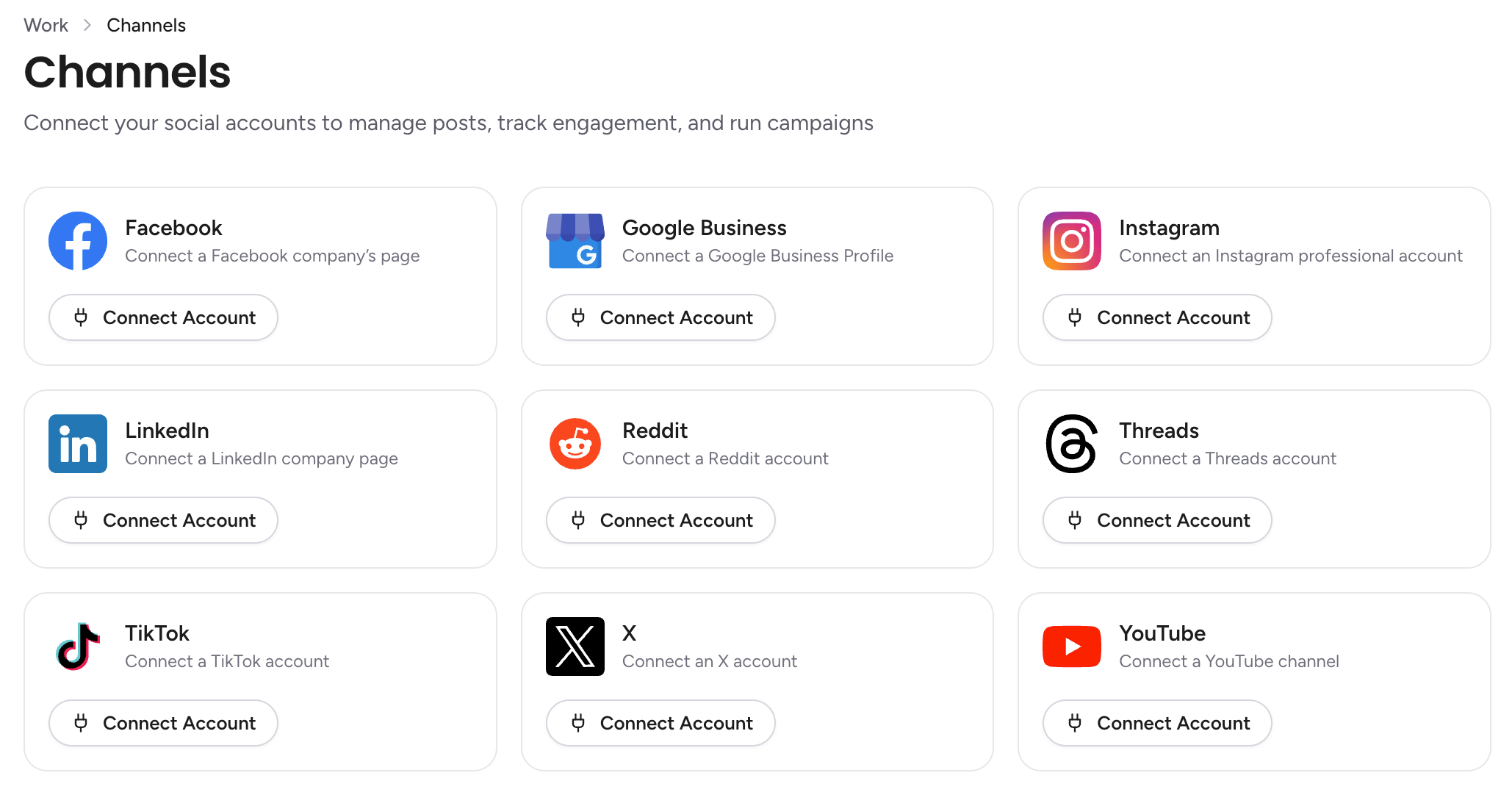
Pick a channel. Tumbleweed supports Facebook, Google Business, Instagram, LinkedIn, Reddit, Threads, TikTok, X, and YouTube. Each has its own card.
Select Connect Account. A window from that network opens. The steps below use Facebook as the example.
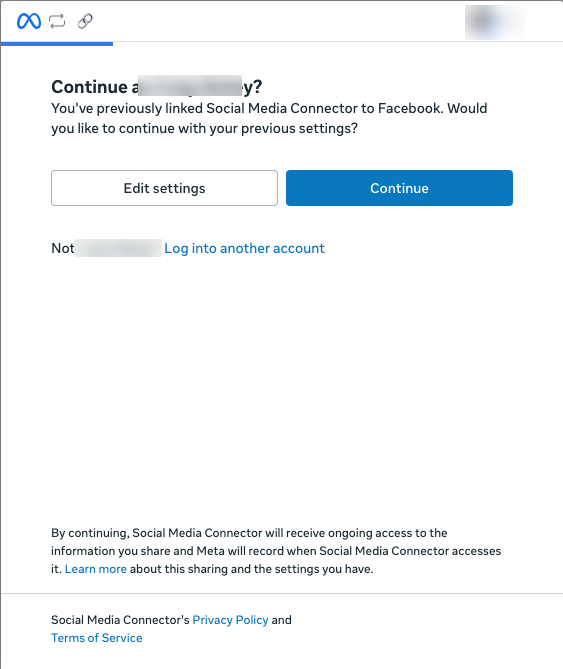
Continue as your Facebook account. If you are not signed in to Facebook, log in first. Facebook then asks whether to continue as your account. Select Continue to keep your previous settings, or Edit settings to change what Tumbleweed can access. If it is the wrong account, select Log into another account.
Choose your Facebook Page. Check the box next to each Page you want to post to, then select Connect page. Each Page is its own account, so connect every Page you plan to use.

Wait for the success screen. It confirms your Page is connected.
Check your channels. Back on Channels, the channel now shows a green check and the name of the connected Page.

Connect your other channels. Instagram, LinkedIn, YouTube, and the rest each open their own sign-in window. Log in if asked, choose the account, page, or channel to connect, and approve access.
Disconnect a channel (optional). Select Disconnect on a channel's card to remove it.
Log in to Tumbleweed and to each social account in your browser first, so the connection windows go faster. If a channel stops being connected, Tumbleweed emails you so posts are not silently missed.