
Download a Performance Report
Create a clean summary of your results for a period, add a note, and keep a copy.
Open Reports. Select Insights in the left navigation, then Reports.
Choose a period. Use the menu at the top left, next to Download and keep. The report compares your results with the period before it, and the dates for both appear at the top right of the report.
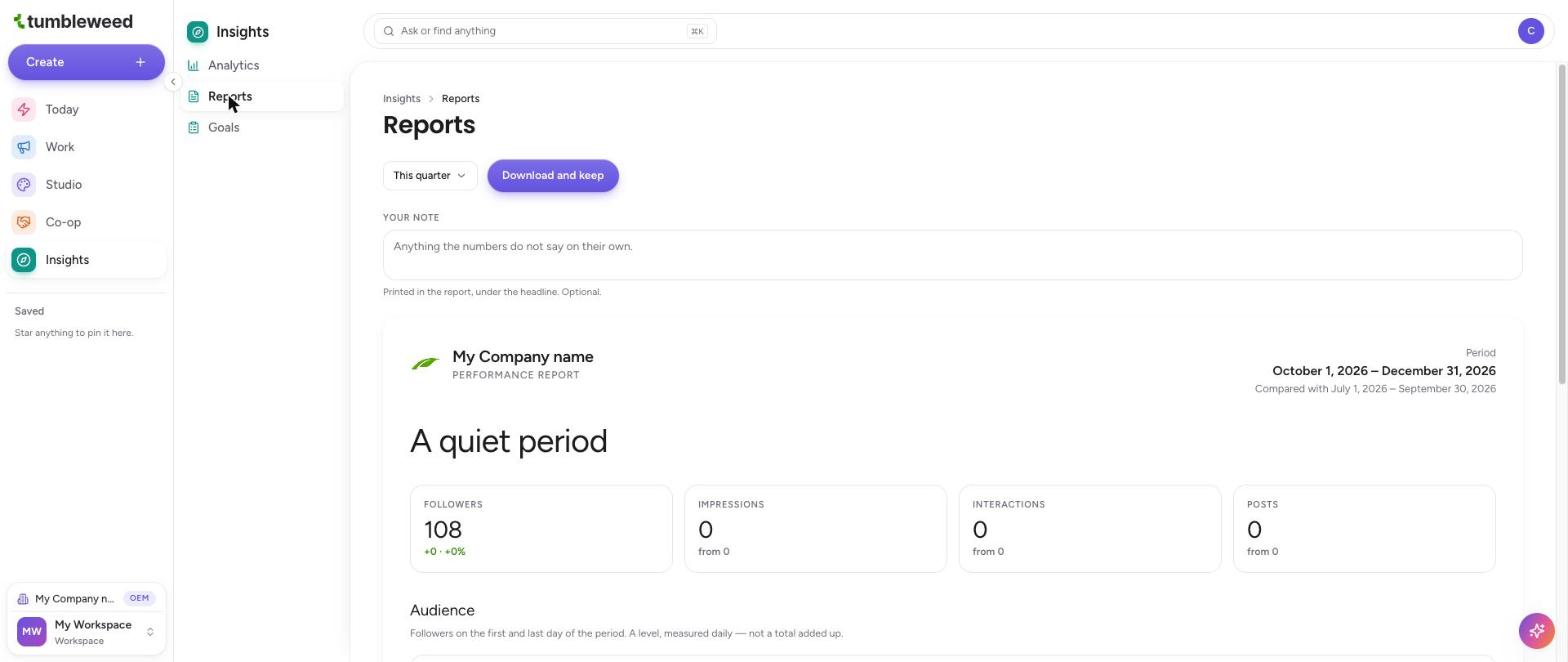
Add a note (optional). Type in the Your note box for anything the numbers do not say on their own. Your note is printed in the report under the headline.
Review the preview. The report shows your company name, the period, a headline, and cards for Followers, Impressions, Interactions, and Posts. Scroll down for the Audience section, which shows followers on the first and last day of the period.
Select Download and keep to save your report.