
Get Started with Tumbleweed
A quick tour of Tumbleweed, from your first sign-in to scheduling a post and checking how it performed.
Create your account. Sign up with your email address or your Google account, then choose OEM/Supplier or Retailer and enter your name and business information.
Start on Today. Today is your home page. The Getting started card tracks five first steps: connect a social channel, design a template, create a campaign, upload your company logo, and set up your Brand Kit. Each one is checked off as you finish it.
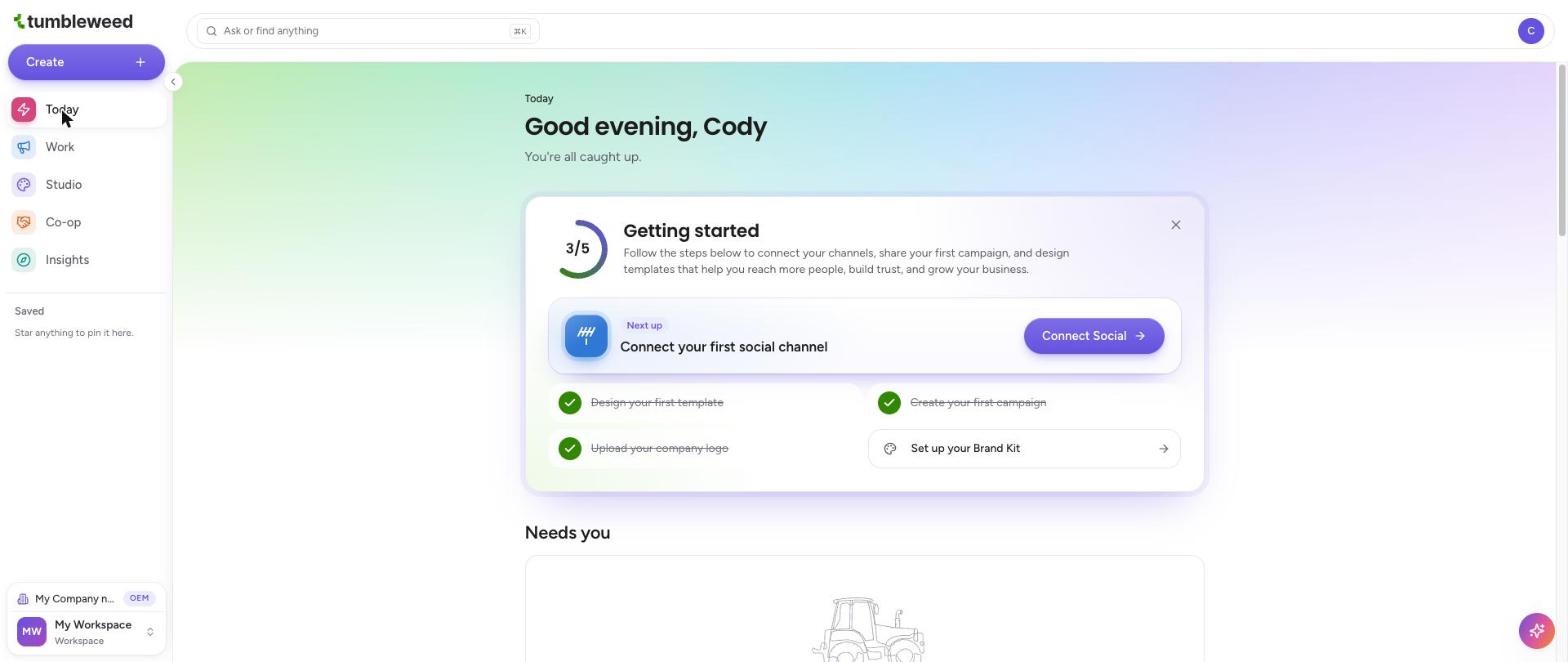
Learn the left navigation. Work is where you plan and publish, with Workflow Hub, Inbox, Ad Campaigns, Network Broadcast, Calendar, and Channels. Studio is the Designer. Co-op holds programs and retailers. Insights shows Analytics, Reports, and Goals.
Connect your social channels. Open Work, then Channels. Tumbleweed supports nine channels, including Facebook, Instagram, LinkedIn, and YouTube.
Set up your Brand Kit. Open your profile menu and choose Brand Kit to add your logo, colors, and fonts.
Design a post. Open Studio, pick a size and a template, and edit it to fit your message.
Create and schedule a post. Select Create, then Post. Write your post, add media, and publish it now or schedule it.
Add your team. Open your profile menu, choose Users, and select Add User.
Check your results. Open Insights to see Analytics, download a Report, or set a Goal.
Work through the steps in order the first time. Each step has its own full guide in this Help Center.