
Get to Know Workflow Hub
See what is waiting on you in Workflow Hub, and learn where to start a new post from there.
Open Workflow Hub. In the left menu, select Work, then Workflow Hub. It is the first item under Work.
Read the status line. Under the page title, one line tells you whether anything needs you. When nothing is waiting, it says "Nothing is waiting on you."
Look for the suggested posts card. If suggested posts are not on yet, a card titled "Have Tumbleweed draft your posts" appears with a Turn on button. It explains that Tumbleweed can write a few posts from your Brand Kit and your own pictures and leave them here for you to approve. To set it up, see Set Up Suggested Posts.
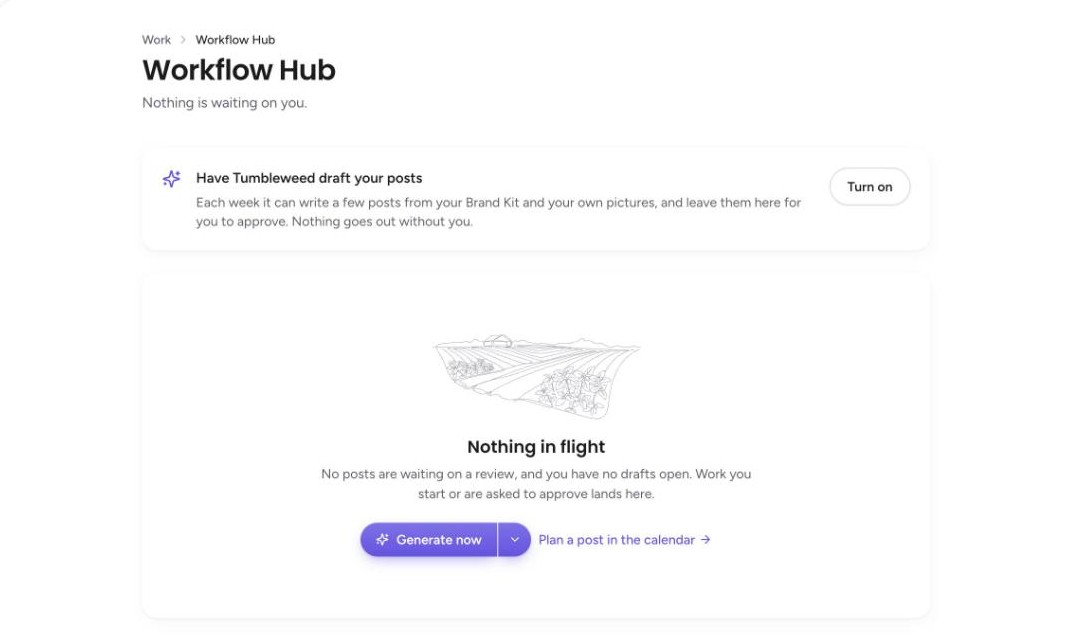
Check the empty state. When no posts are waiting on a review and you have no drafts open, the page says "Nothing in flight." Work you start, or are asked to approve, shows up here.
Open the Generate now options. Select the arrow next to Generate now. A menu lets you choose what kind of post (Surprise me, Shop talk, Seasonal, Product, or Open house), how long it should be (Short, Standard, or Detailed), and the tone (Matter-of-fact or Creative). Surprise me, Standard, and Matter-of-fact are highlighted to start.
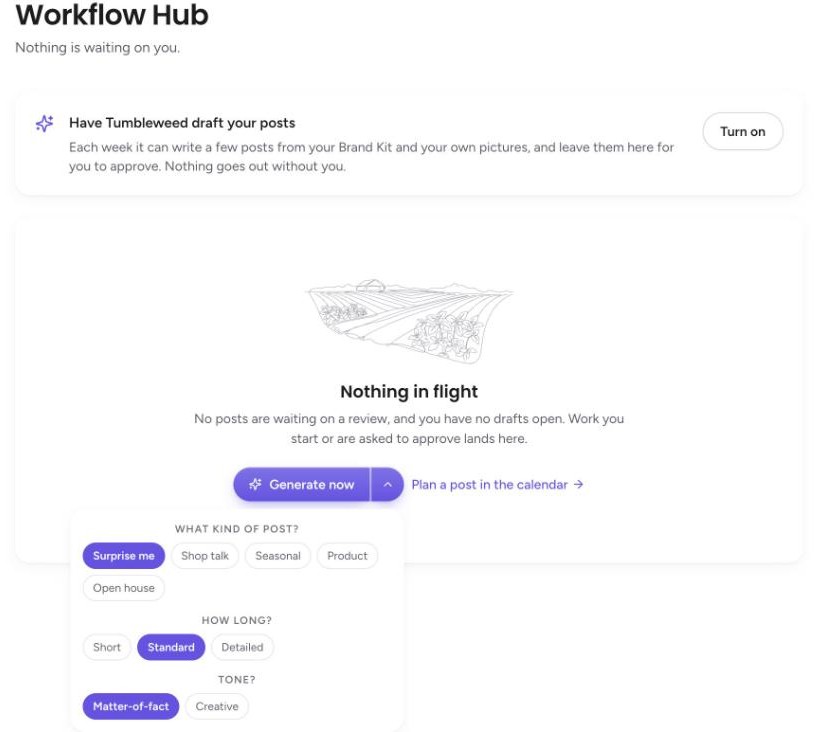
Select Generate now. This asks Tumbleweed to draft a post with the options you chose. It needs suggested posts to be set up first. If they are not, a message says "Suggested posts are not set up for this workspace yet." For the full walkthrough, see Generate a Post on Demand.
Plan a post yourself. Select Plan a post in the calendar, next to Generate now. It takes you to Work, then Calendar, where you can select Create Post to write one yourself.
Nothing goes out without you. Posts that Tumbleweed drafts wait in Workflow Hub until you approve them.