
Save a Template for Weekly Posts
Save a design as a template, let Tumbleweed write its text, and choose which kind of post it is for.
How do I save a template that Tumbleweed can write in?
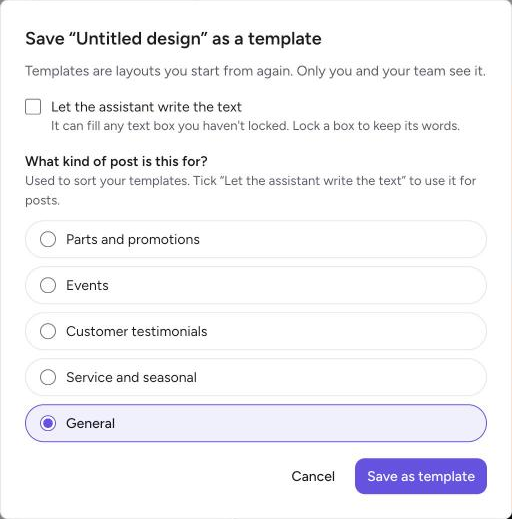
To save a template, open a design in the Designer, choose Save as template, tick Let the assistant write the text, and pick a kind of post.
Open your design. In the Designer, open My Designs, then select the menu on the design you want to reuse.
Choose Save as template.
Tick "Let the assistant write the text." Tumbleweed can then write in any text box you haven't locked. To keep a box's words, lock it.
Pick a kind of post. Choose Parts and promotions, Events, Customer testimonials, Service and seasonal, or General. Weekly posts use the right template for each kind, taking turns between them. Then select Save as template.
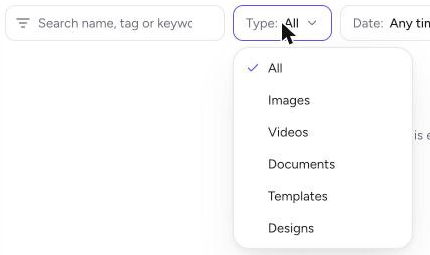
Check your templates in the Content Library. Choose Type, then Templates. Each template shows its kind. You can filter by kind, or change a template's kind from its menu.
Choose which templates weekly posts can use. In Suggested posts, under Templates, templates are grouped by kind. Tick the ones you want.
Use one for a single post, if you like. In Generate now, under Just this once, use the Template choice. Leave it on Any (we choose), or pick one. Generate now is for Admins.
Templates Tumbleweed can't write in are shown in the Template choice but can't be picked. Turn on Let the assistant write the text when you save, so the template is available.