
Set a Goal
Create a one-time or recurring goal, track it with a checklist or a number, and keep your team on it.
Open Goals. Select Insights, then Goals. The cards at the top count your active goals, goals on track, goals that need attention, and your longest streak.
Select New Goal. A three-step window opens.
Name it. Enter a goal title, such as 8 social posts per month, and pick a category: Paid Social, Social Media, Event, Search Ads, Direct Mail, Display, or Other. Then choose a goal type. One-time goals have a deadline. Recurring goals repeat every period. Select Continue.

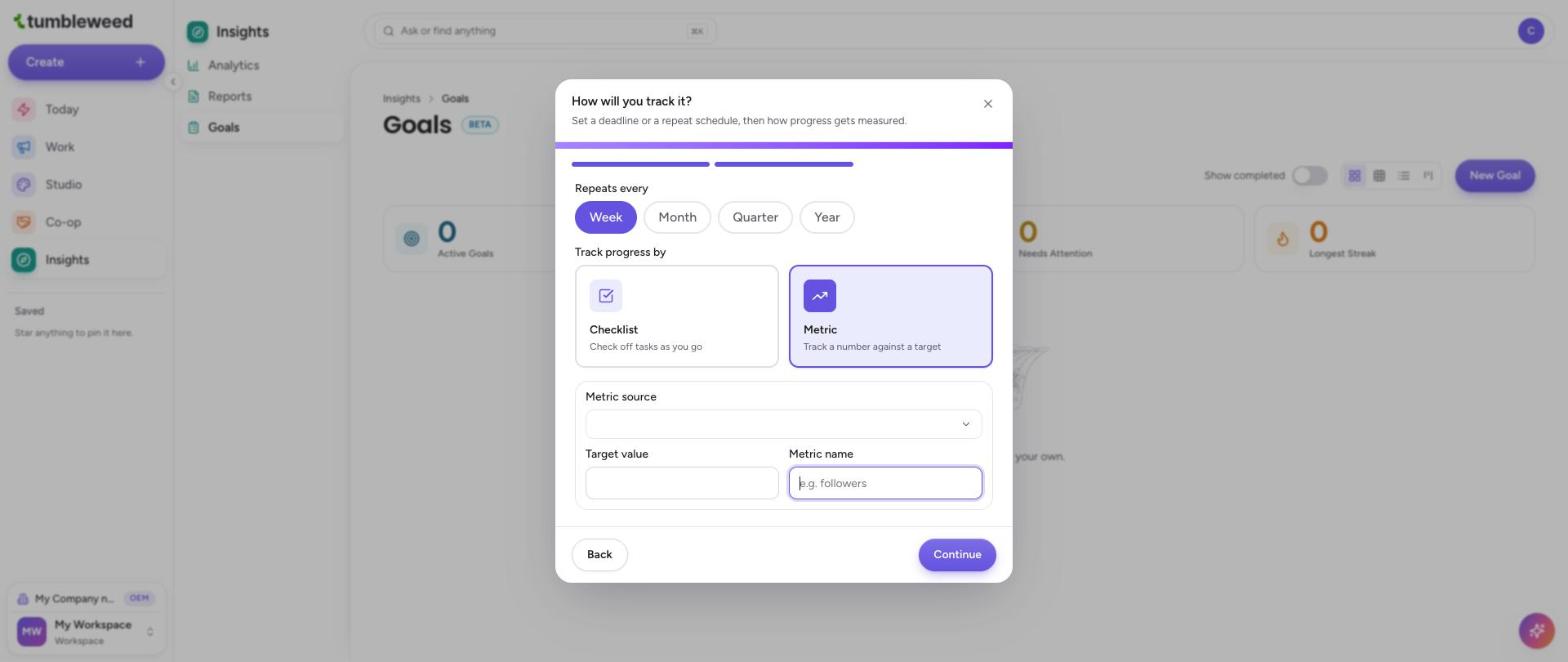
Set the timing. For a one-time goal, choose a Due date. Pick one from the calendar, or use a shortcut: +30d, +60d, +90d, End of quarter, or End of year. For a recurring goal, pick how often it repeats: Week, Month, Quarter, or Year.
Choose how to track it. Track progress with a Checklist, where you check off tasks as you go, or a Metric, where you track a number against a target. Select Continue.
Set up a metric (Metric goals only). Pick a Metric source: Published posts, In-app activity, Follower count, Engagement, Impressions, or Manual entry. Then enter a Target value and a Metric name.
Add your tasks (Checklist goals only). On the last step, type each task under Checklist tasks. Select the plus button to add another, drag the handle to reorder them, or select the x to remove one.
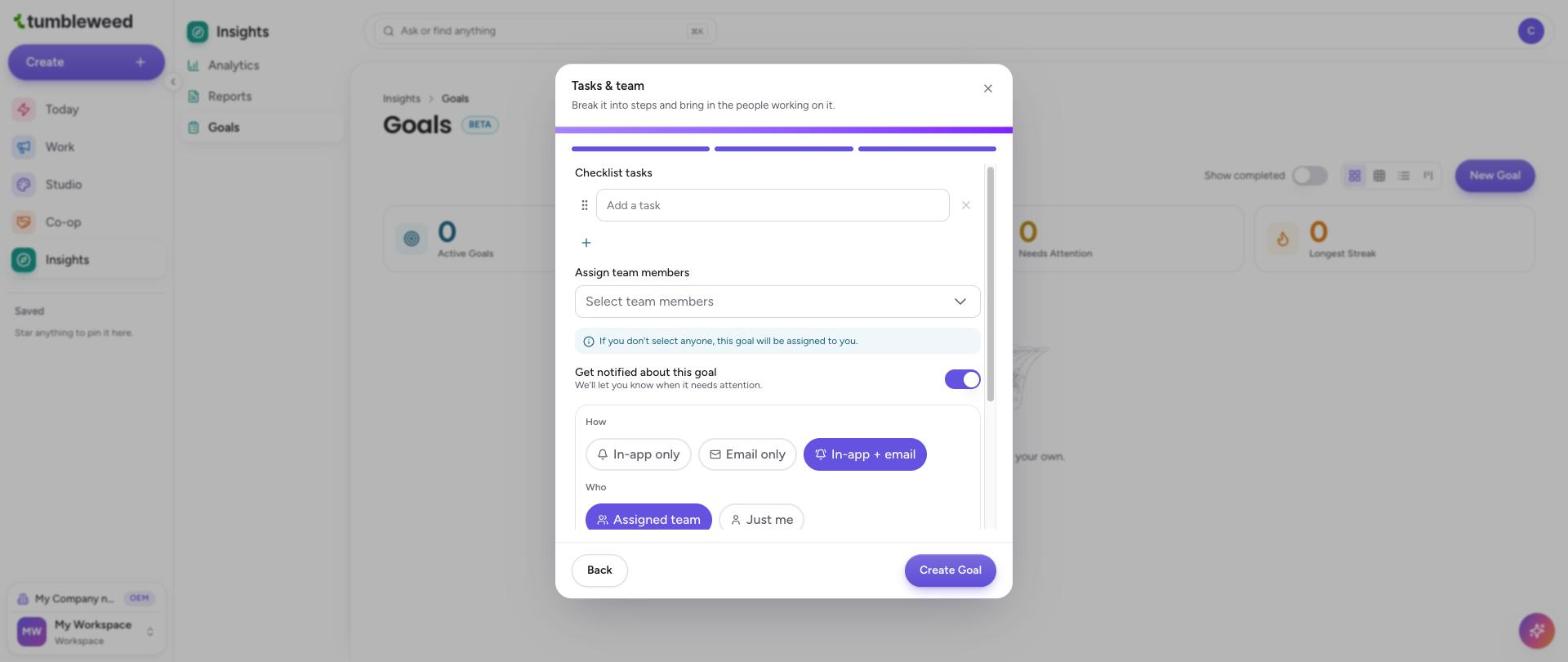
Add your team. Choose team members to assign. If you do not pick anyone, the goal is assigned to you. You can add a description of up to 200 characters.
Choose notifications. Leave Get notified about this goal on to hear when it needs attention. Pick how, with In-app only, Email only, or In-app and email, and who, with the Assigned team, Just me, or the Assigned team and you.
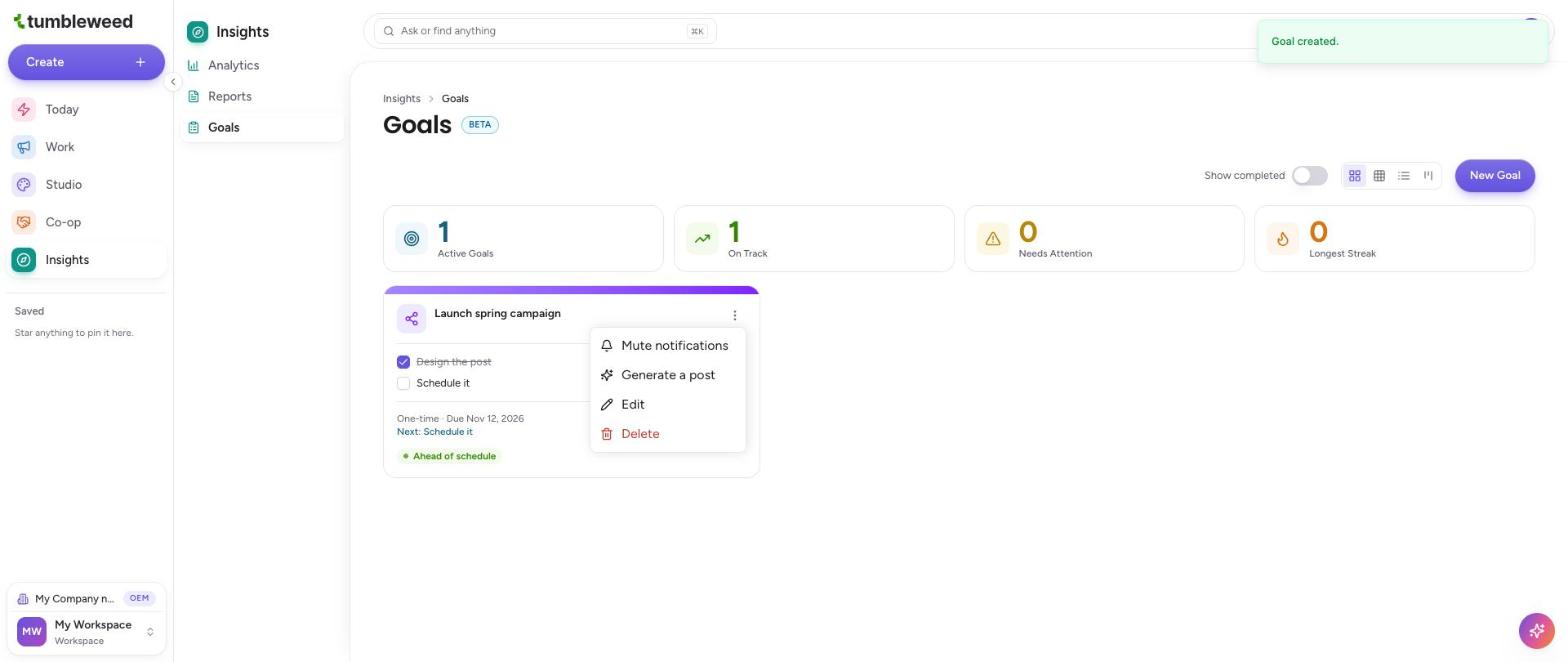
Select Create Goal. You see a Goal created message, and the goal appears on the Goals page with its tasks, due date, next task, and a status such as On track.

Track your progress. Check off a task on the goal card as you finish it. The next task updates, and the status changes, for example to Ahead of schedule.
Manage a goal. Select the three dots on a goal card to mute notifications, generate a post, edit the goal, or delete it. Turn on Show completed to see finished goals.
Goals is a Beta feature. Pick Manual entry as the metric source for any number Tumbleweed cannot follow on its own.