
Set Up Suggested Posts
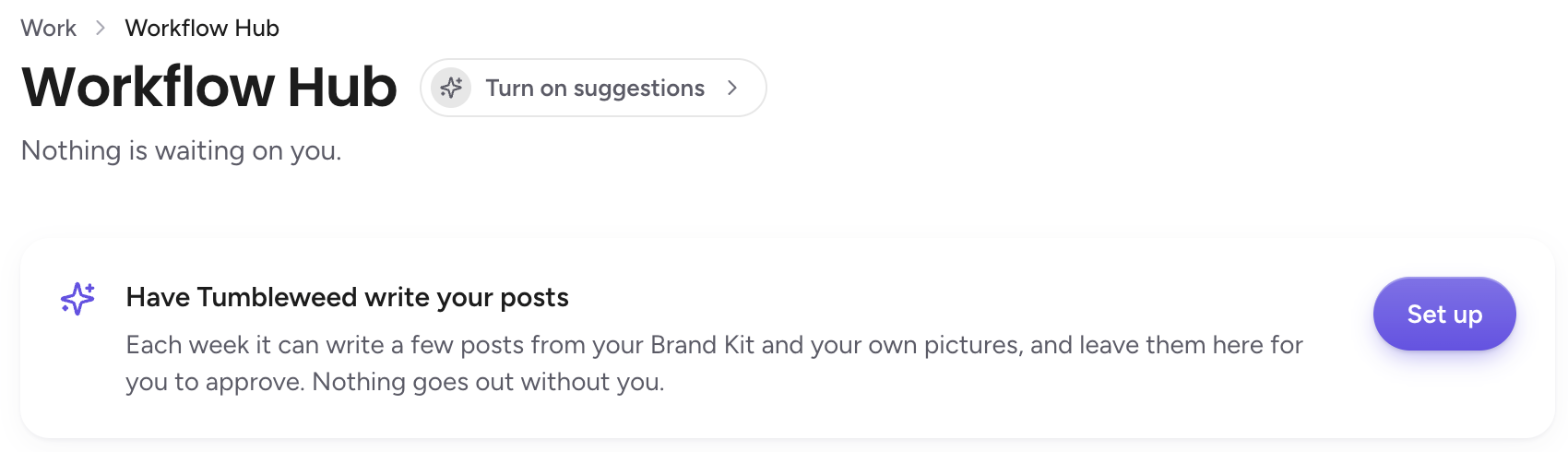
Turn on weekly suggested posts in Workflow Hub, then choose your channels, how many posts, and when. Nothing posts until a person on your team approves it.
How do I set up weekly suggested posts?
To set up weekly suggested posts, open Work, then Workflow Hub, select the Suggestions chip, switch on Weekly suggestions, and choose your channels, how many posts, and when.
Open Workflow Hub. In the left menu, select Work, then Workflow Hub. Posts that need a decision appear under Needs your review, and new drafts appear under Suggested for you.

Open the Suggested posts window. Select the Suggestions chip beside the page title. It shows whether weekly suggestions are on and when the next run is. On a new workspace, you can also select Turn on in the card that offers to draft your posts.

Switch on Weekly suggestions. This is the toggle at the top of the window. Nothing is published. Every suggestion waits for your approval.
Check your Brand Kit. Every post is written from your Brand Kit: about your business, how you sound, your writing rules, and your website for facts. Your colors and logo give posts their look. Select Edit in Brand Kit to change any of it. See Set Up Your Brand Kit.
Choose your channels. Select the channels a suggestion is written for. If a channel is not connected yet, you can still plan for it under Not connected yet? Plan for. Your choice also applies when you select Generate now.
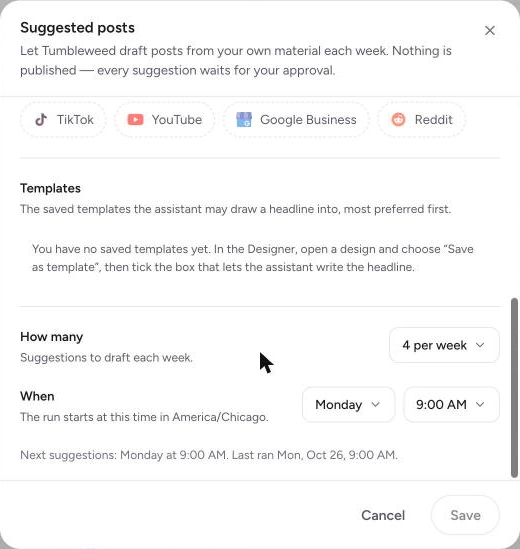
Choose your templates, if you like. Under Templates, your saved templates are grouped by kind, with a tick for each one. Weekly posts use the right template for each kind of post, taking turns between them. If you have none, the section tells you how to add one: in the Designer, open a design, choose Save as template, then tick the box that lets the assistant write the text. See Save a Template for Weekly Posts.
Set how many and when. Under How many, choose how many suggestions to draft each week. Under When, choose the day and time the run starts. The window shows the time zone it uses and when the next suggestions are due.
Select Save. The window closes and your settings are saved.
Review your suggestions. When the weekly run finishes, the drafts wait in Workflow Hub. Each one shows its checks, with Approve, Edit, and Dismiss beside it. Open one to read it, edit it, or approve it. See Check the Facts in a Suggested Post.
Set up your Brand Kit first. Suggested posts are written from your Brand Kit and your own pictures, so the more complete it is, the better the drafts sound.