
Set Up Your Brand Kit
Add your logo, colors, fonts, and brand voice so everything you publish stays consistent.
Open Brand Kit. Select your profile picture in the top right corner, then choose Brand Kit. You can also select Set up your Brand Kit on the Getting started card on Today.
Start from your website (optional). Paste your website address and select Scan. Tumbleweed shows what it found: up to three colors, a heading font, and your logo. Select Use these to apply them, or Discard to leave your kit as it is. Nothing changes until you choose. After you save, this box becomes Rescan your website, so you can check your site again later.
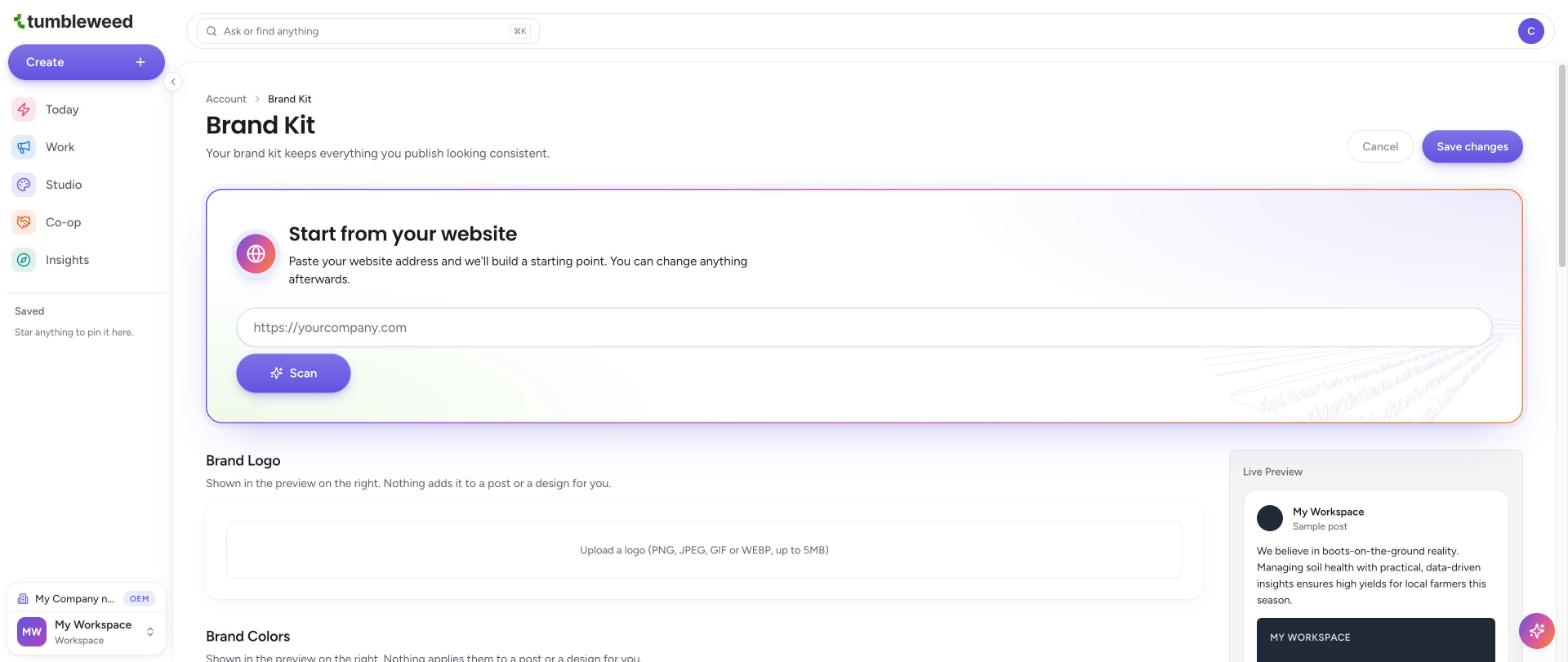
Upload your logo. Add a PNG, JPEG, GIF, or WEBP file up to 5 MB. If you used a scan, your logo may already be there. Select the trash icon to remove it and upload a different one. It appears in the Live Preview on the right.
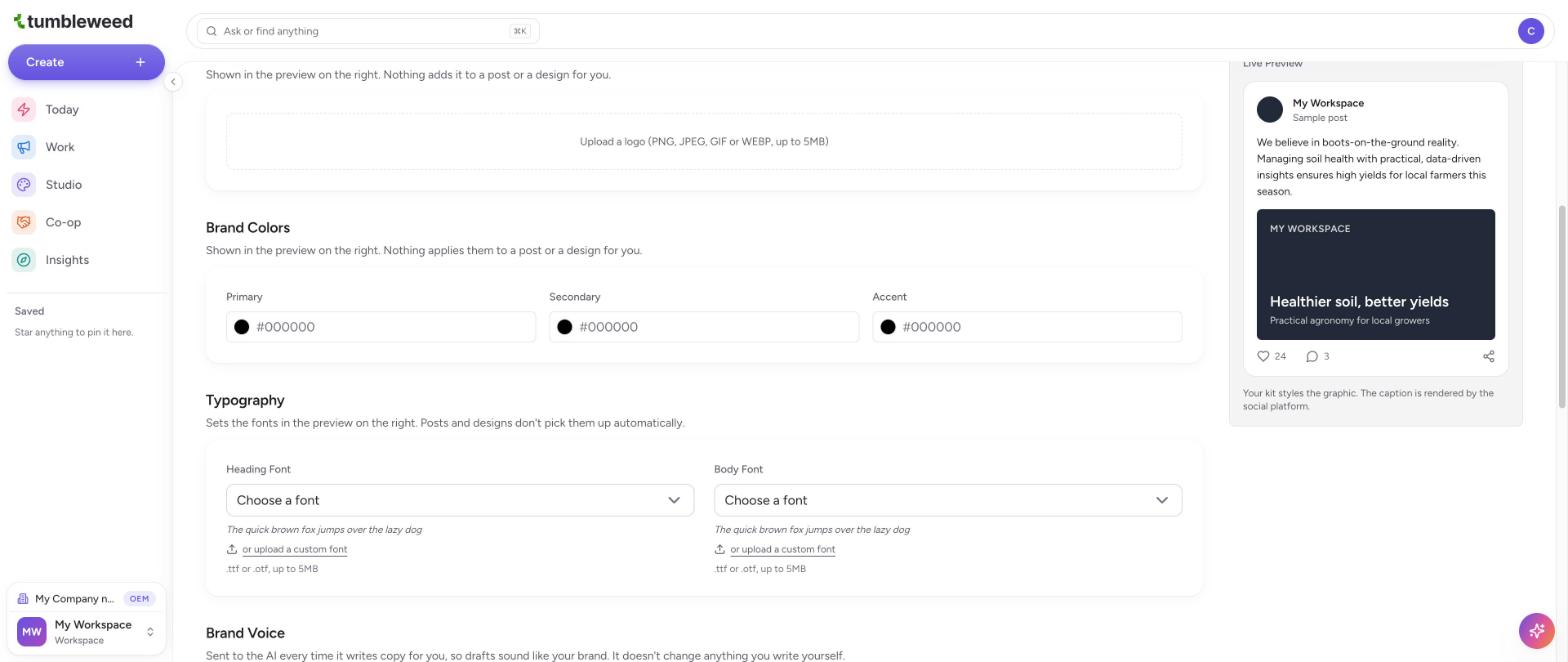
Set your colors. Choose a Primary, Secondary, and Accent color. Change any color a scan filled in.
Choose your fonts. Pick a Heading Font and a Body Font, or upload a custom font as a .ttf or .otf file up to 5 MB. A scan fills in the Heading Font, so check the Body Font too. Fonts show in the preview only. Posts and designs do not pick them up automatically.
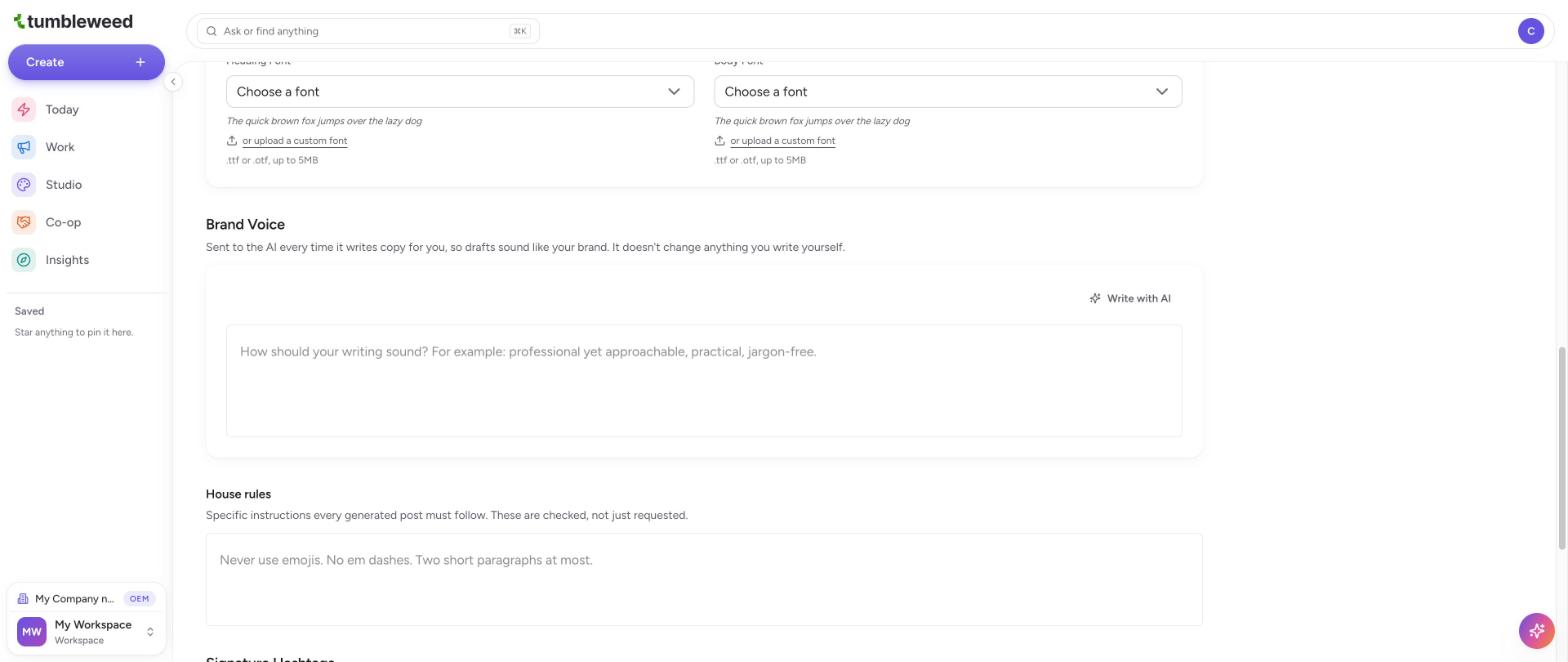
Describe your brand voice. Write how your brand sounds, or select Write with AI above the box. A Brief box opens, and a short note about what to emphasize is optional. When the box already has text, select Improve. A suggestion appears below with Use this, Try again, and Discard. Select Discard to keep what you had. Tumbleweed sends your brand voice to the AI every time it writes copy for you. It does not change anything you write yourself.
Add house rules (optional). Enter specific instructions every generated post must follow, such as Never use emojis. Two short paragraphs at most. These are checked, not just requested.
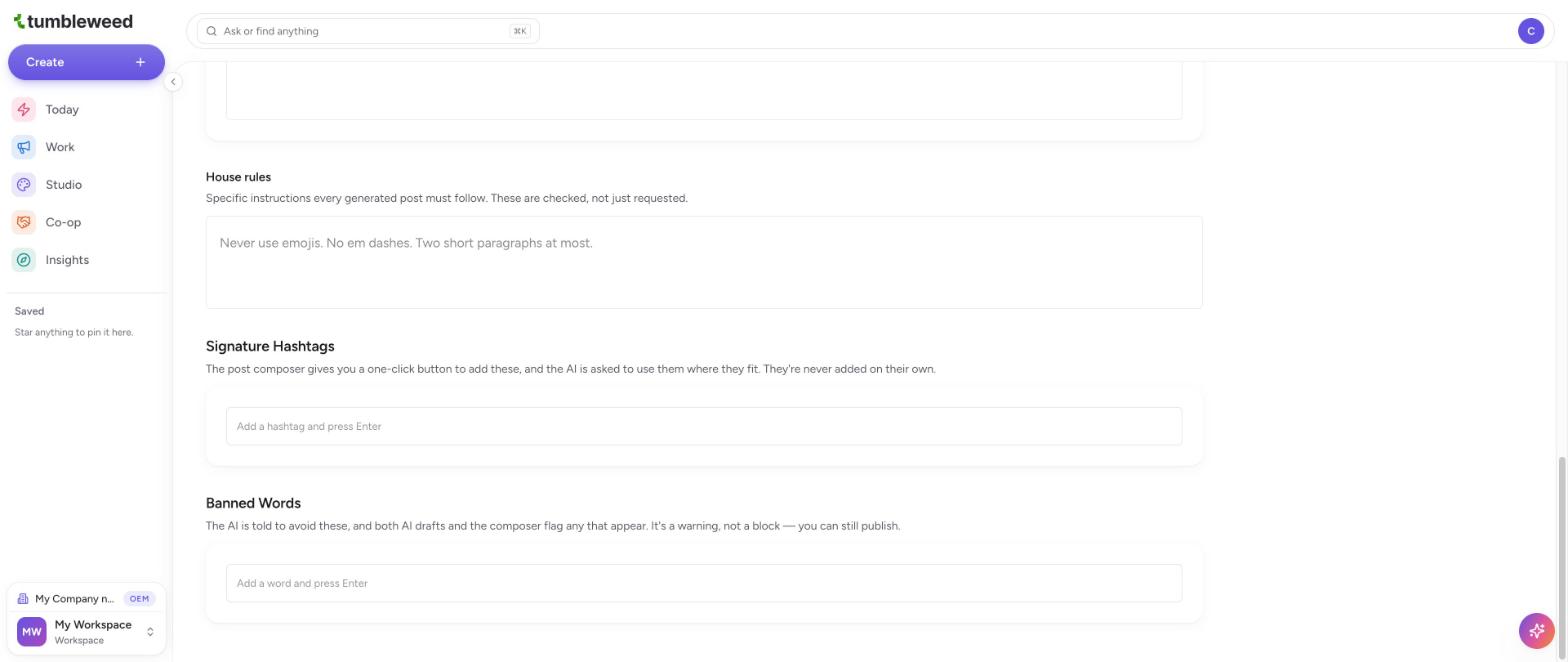
Add Signature Hashtags (optional). Type a hashtag and press Enter. The post composer gives you a one-click button to add them, and the AI is asked to use them where they fit. They are never added on their own. They do show in the sample post in the Live Preview.
Add Banned Words (optional). Type a word and press Enter. The AI avoids these words, and both AI drafts and the post composer flag any that appear. It is a warning, not a block, so you can still publish.
Check the Live Preview. The preview on the right shows a sample post styled with your kit. Your kit styles the graphic. The caption is rendered by the social platform.
Select Save changes at the top right. An Unsaved changes note shows until you save, then it changes to Saved.
Your Brand Kit shapes the preview and guides the AI, but it does not apply itself to posts and designs. Add your logo and colors to each design yourself.