
Use the Assistant
Open the Assistant panel to ask questions about your marketing goals and the posts waiting on your review.
Open the Assistant. Select the sparkle button at the bottom right of the page. A panel opens on the right with an Assistant tab. The panel stays open as you move between pages.
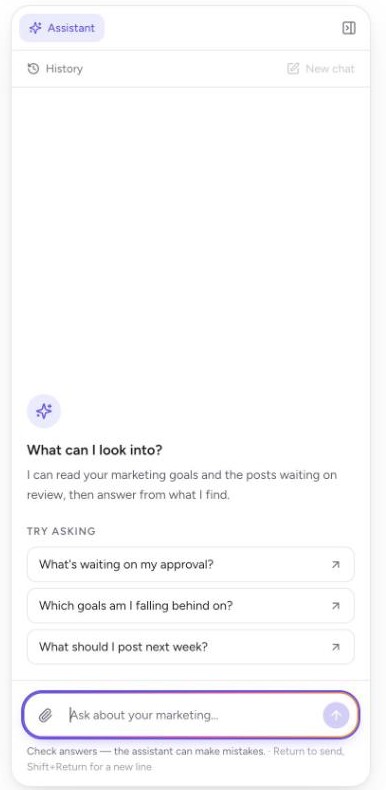
See what it can do. The panel asks "What can I look into?" and explains that the Assistant can read your marketing goals and the posts waiting on review, then answer from what it finds.
Try a starter question. Under Try asking, select one of the suggestions: "What's waiting on my approval?", "Which goals am I falling behind on?", or "What should I post next week?". Selecting one sends it right away.
Or ask your own. Type in the box that says "Ask about your marketing." Select the arrow button or press Return to send, or press Shift and Return for a new line. The box reads "Waiting for a response" until the answer is finished.
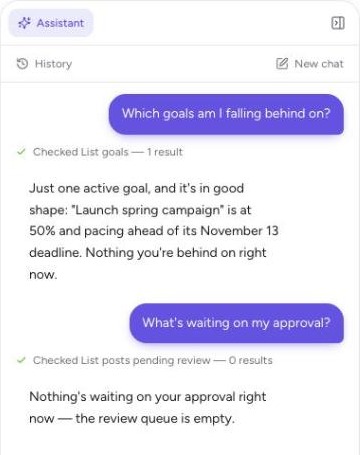
Read the answer. Small lines above the answer, such as "Checked List goals," show what the Assistant looked up. The answer follows in plain language and comes from your own account. Asked which goals are behind, for example, it reported one active goal at 50% and ahead of its deadline. When there is nothing to report, it says so, such as an empty review queue.
Review any offer before you reply. For open questions like "What should I post next week?", the Assistant may suggest ideas and offer to draft copy. Nothing happens until you reply, so answer only if you want it to go ahead.
Look back at past chats. Select History at the top left of the panel. Your chats are listed by their first question, with how long ago they happened. Select a chat to reopen it with its answers, or select History again to go back.
Start a new chat. Select New chat at the top right of the panel to begin a fresh conversation. Your earlier chat stays in History. New chat is dimmed while History is open or while the current chat is empty.
Check the answers. A note under the box reminds you that the Assistant can make mistakes, so review what it tells you before you act on it.
Close the panel. Select the panel icon at the top right of the panel. The sparkle button returns to the bottom right of the page.
If the Assistant says "AI features aren't enabled for your organization yet," ask an organization admin to turn them on in Settings, or contact support.