
Write a Post with AI
Give Tumbleweed a short brief, review the draft it writes, and adjust it before it goes into your post.
Start a post. Select Create, then Post. The Create New Post window opens.
Choose your channel. Under Select Social Media Platforms, select each channel the post is going to. Do this first, so the draft fits where it is going. Until you pick at least one channel, the Generate button is dimmed and the window says "Choose at least one platform first, so the draft fits where it is going."
Select Write with AI. It sits at the top right of the Post field. A Brief box opens above the post box.
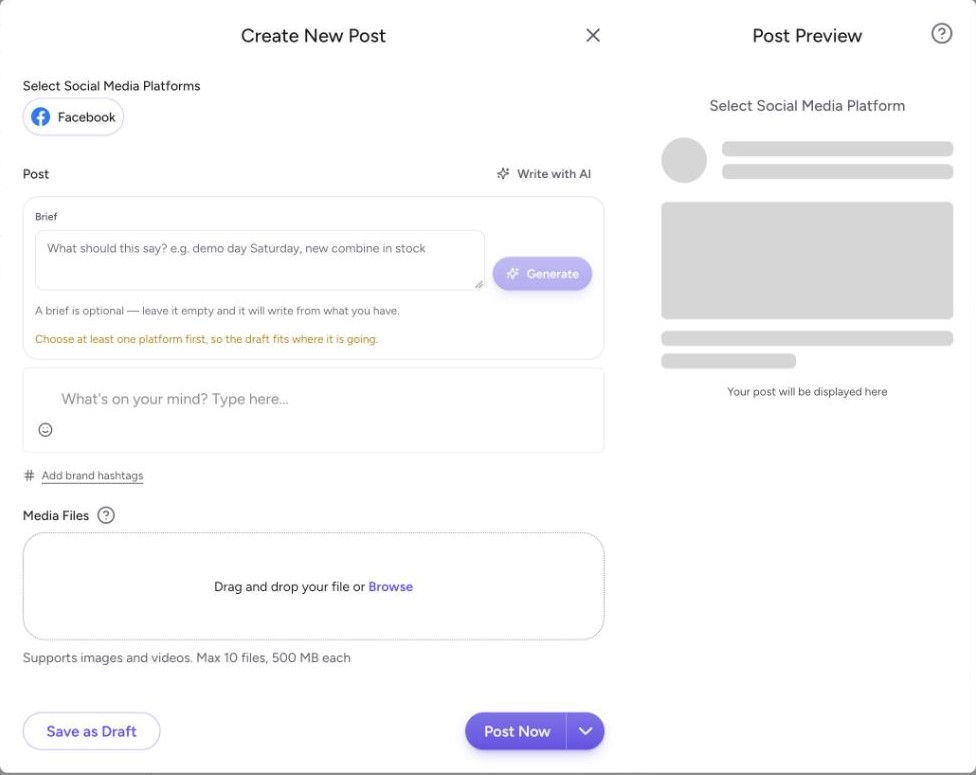
Add a brief, if you like. Say what the post should be about, such as "demo day Saturday, new combine in stock." A brief is optional. Leave it empty and Tumbleweed writes from what it has, which gives a more general post. If the Post box already has text, the button reads Improve instead of Generate and works from that text.
Select Generate. The button turns on once a channel is chosen. The draft appears in a few seconds.
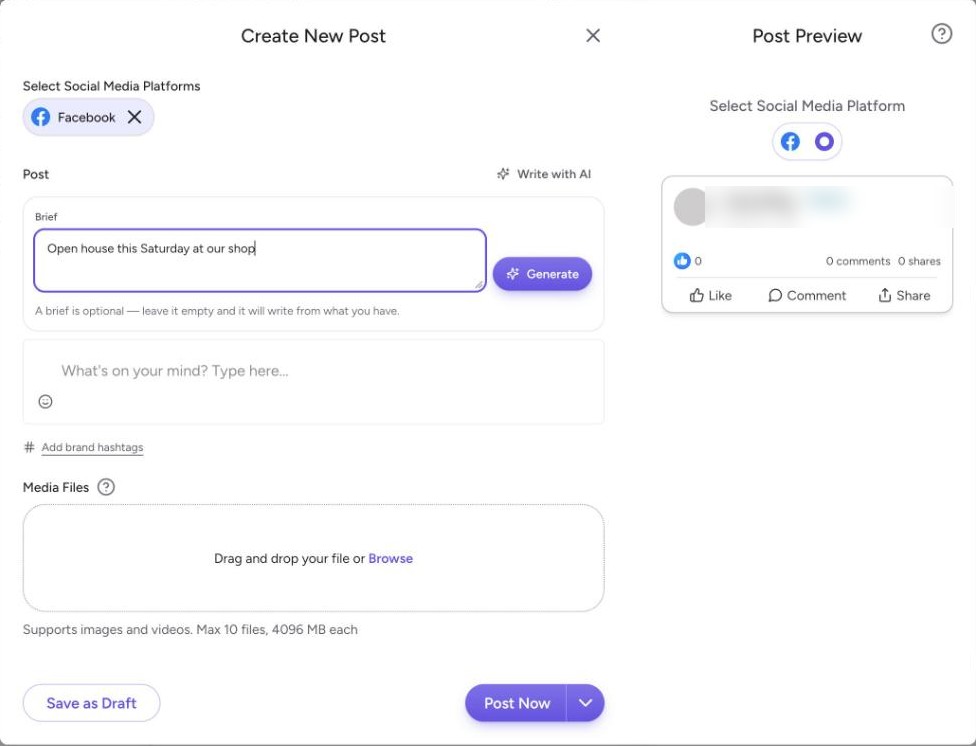
Review the draft. The draft shows in its own box under the Brief. Nothing is added to your post yet. A line under the draft, such as "Brand voice applied," tells you your Brand Kit was used: your brand voice, banned words, and signature hashtags.
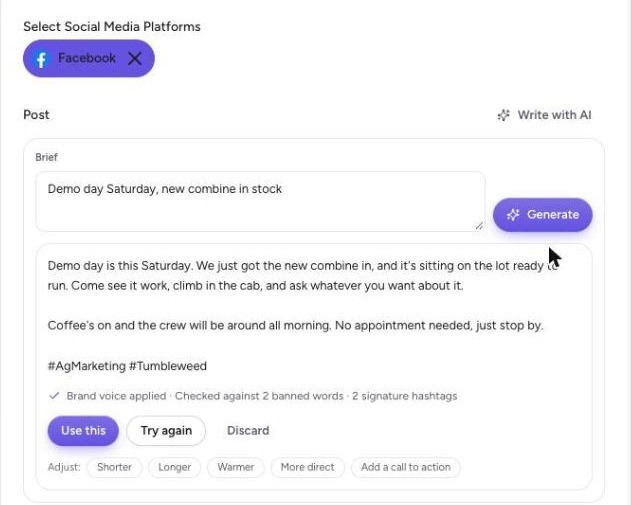
Refine it, if needed. Under Adjust, select Shorter, Longer, Warmer, More direct, or Add a call to action to rewrite the draft that way. Select Try again for a fresh version, or Discard to throw the draft away and keep what was in the Post box.
Select Use this. The draft moves into the Post box and the Post Preview on the right shows it. You can keep editing the text like any other post.
Finish the post. Add media if you like and check the Post Preview. Then save a draft, post, or schedule the post as you normally would. Nothing goes out until you choose one of those.
If you see "AI features aren't enabled for your organization yet," ask an organization admin to turn them on in Settings, or contact support.